
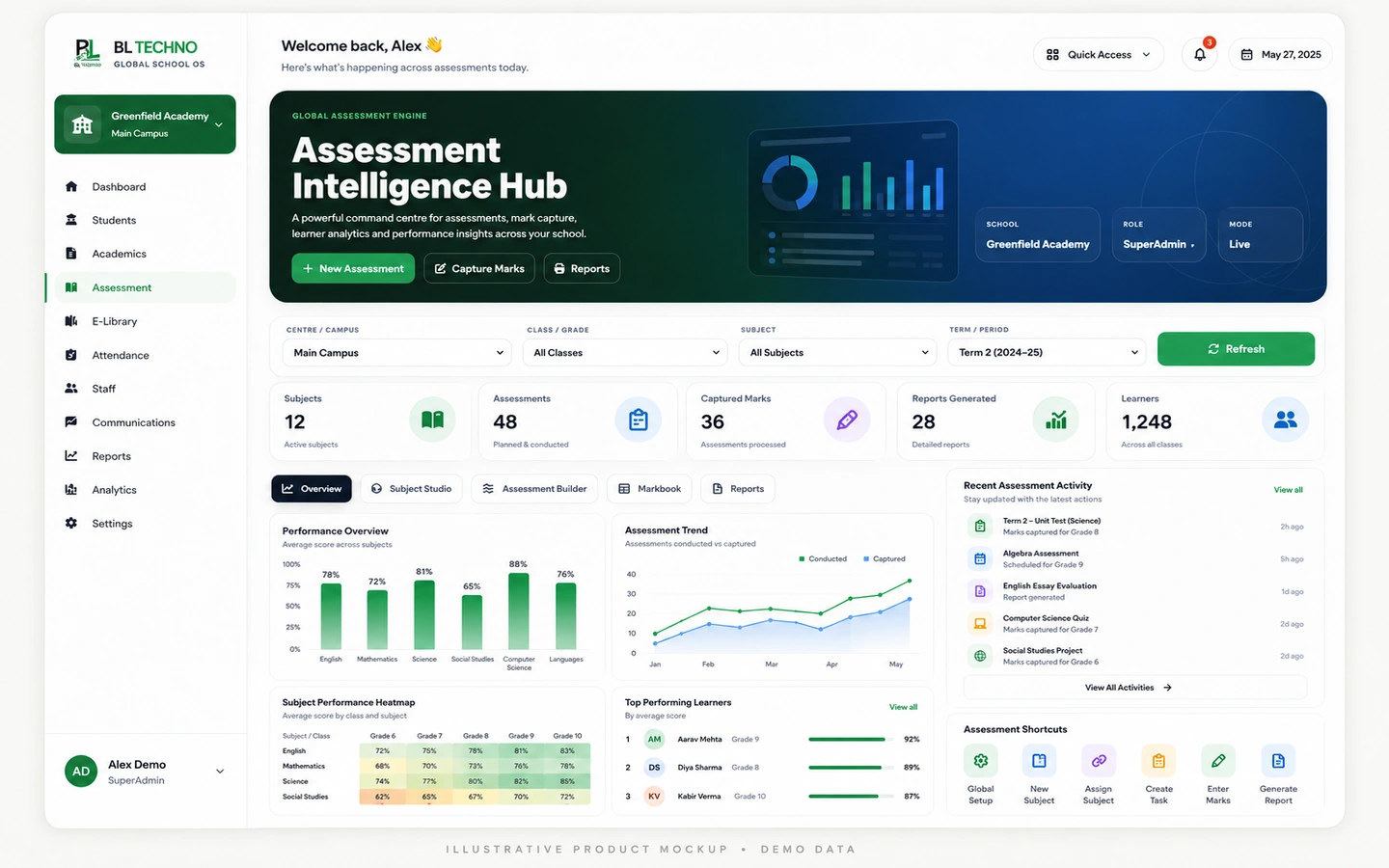
 STEP 01
ACADEMIC WORKFLOW
Configure
Country & curriculum
Assessment IntelligenceOrganise curriculum context, terms/periods, subjects, class assignments, assessments and performance reporting inside a connected academic workflow.
ILLUSTRATIVE • DEMO DATAOrganise curriculum context, terms/periods, subjects, class assignments, assessments and performance reporting inside a connected academic workflow.
See BL TECHNO Teacher →Tap a step to change the visual. Each stage comes directly from the feature workflow defined for BL TECHNO.
STEP 01Country & curriculum
Assessment Intelligence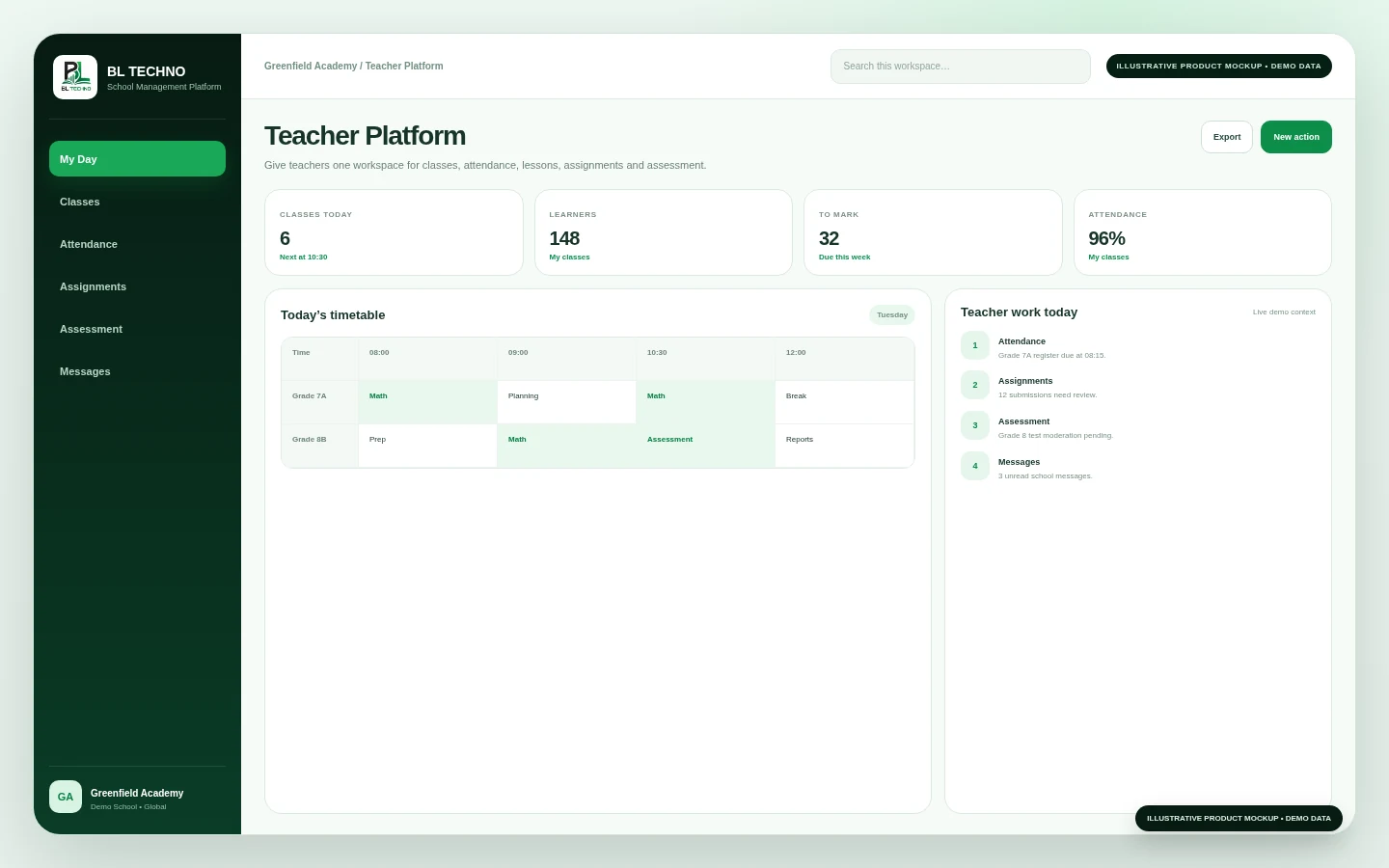 STEP 02
Terms, periods & subjects
Teacher Platform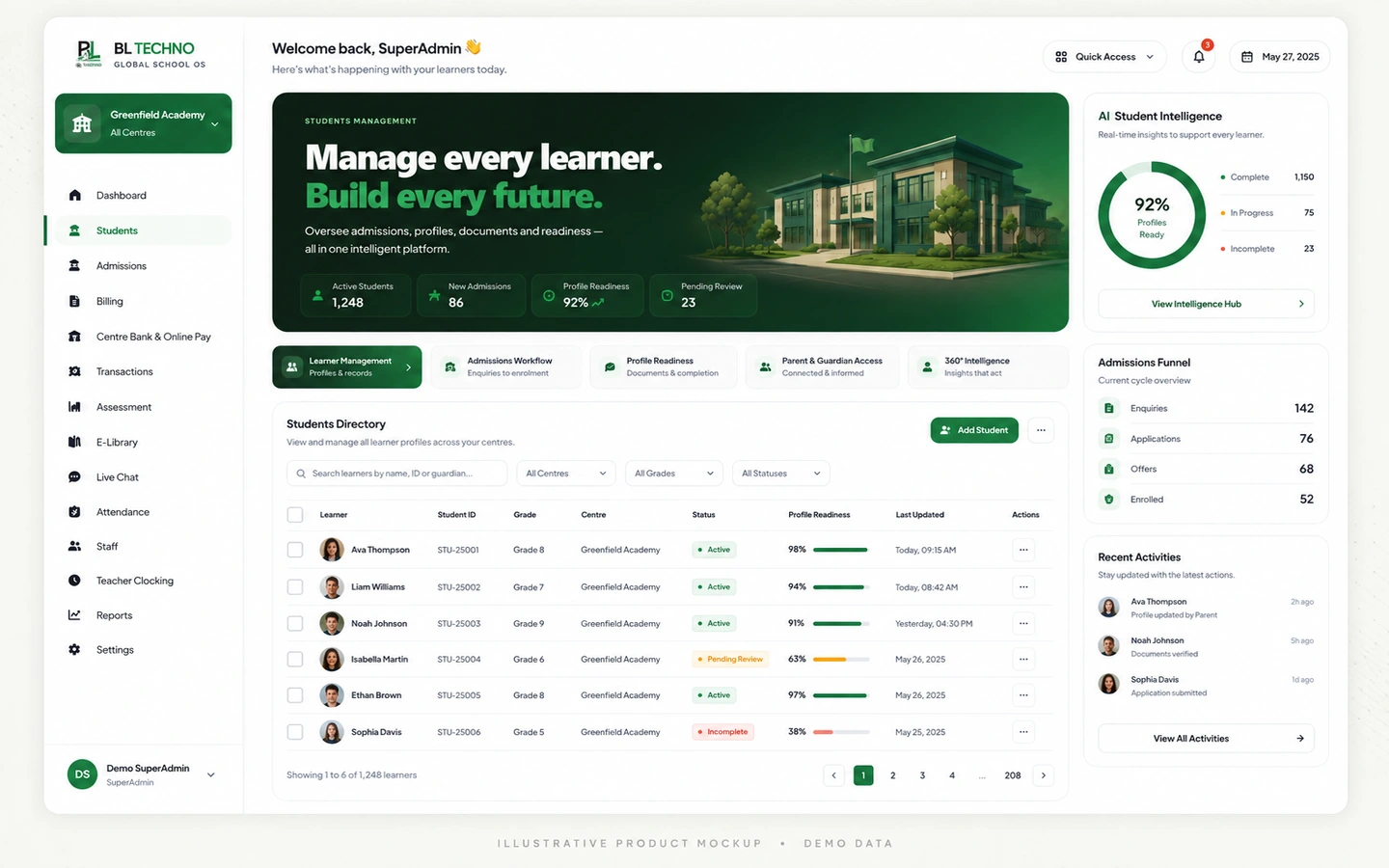 STEP 03
Subject to class
Student Management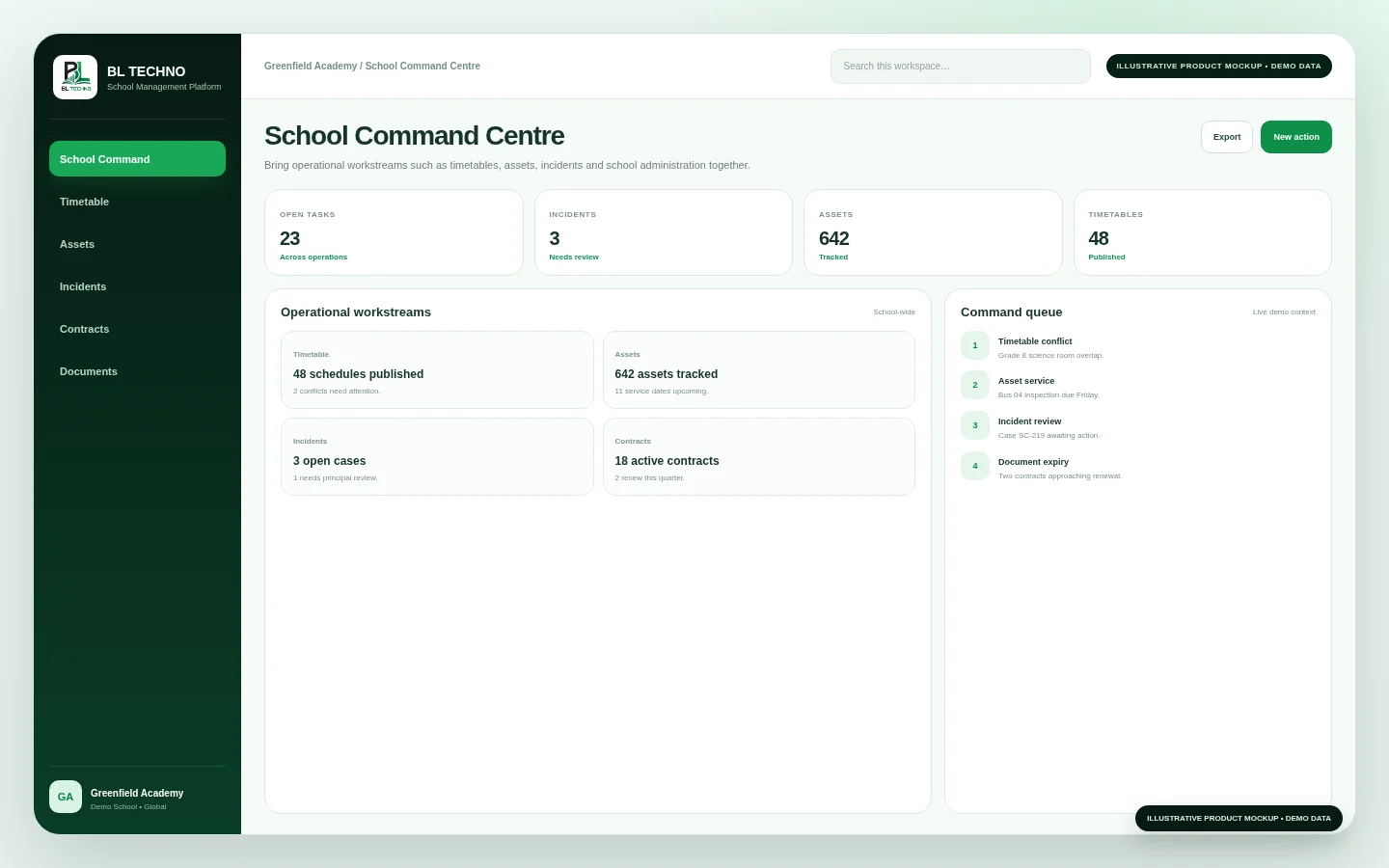 STEP 04
Create/update assessments
School Command Centre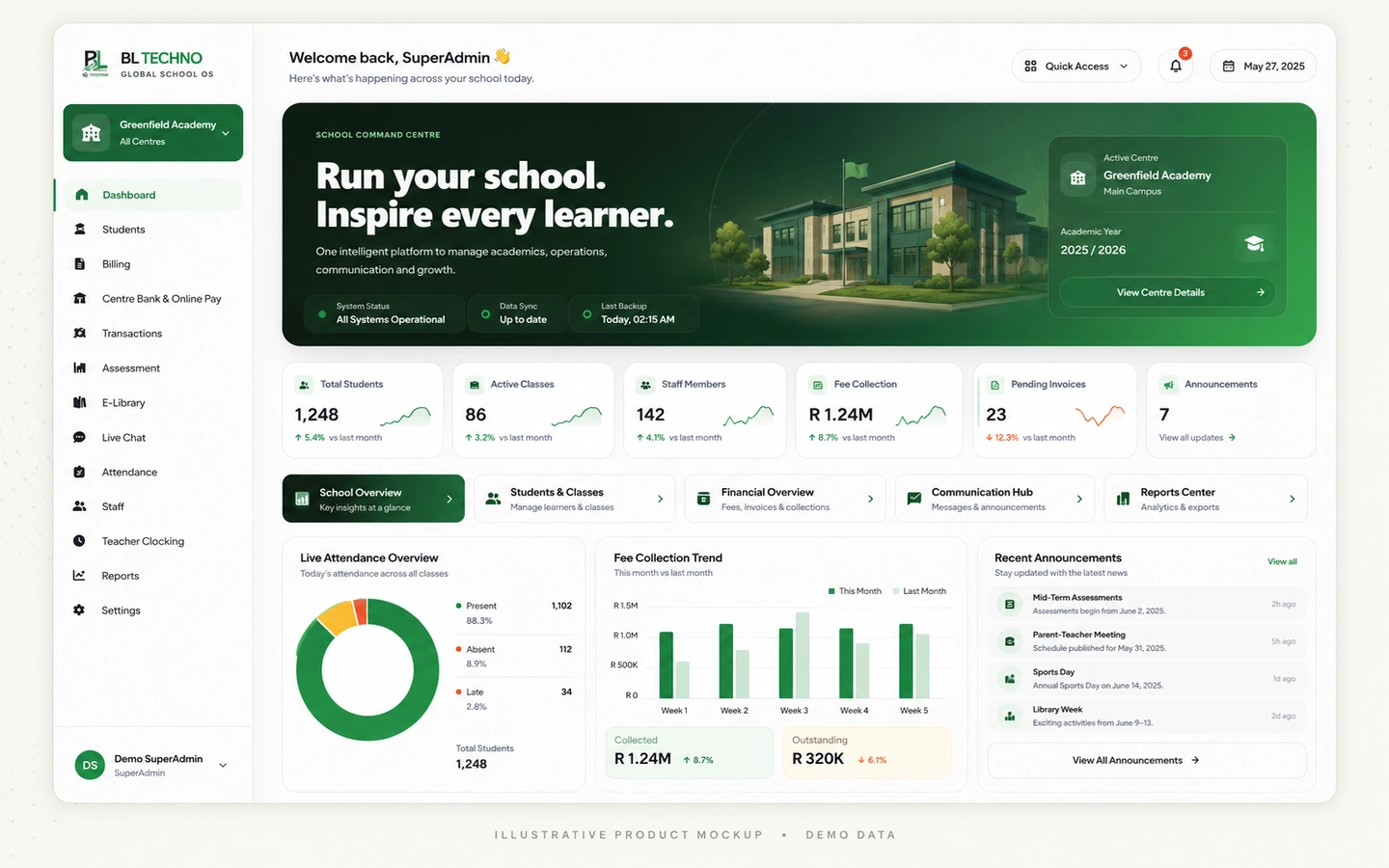 STEP 05
Performance & reports
School Command DashboardThese outcomes describe the operating purpose of the feature without inventing customer statistics.
Build curriculum, period and subject context in the right order.
Tie assessments to the correct subject, class and academic period.
Move from captured results toward subject averages, dashboards and reports.
Six capability areas show what the feature organises and how the workflow becomes operational.
Set the academic context before building assessment records.
Create the periods used for teaching and reporting.
Register subjects and make them available to the school scope.
Connect subjects to the classes that teach them.
Create and maintain assessment records.
Review live performance signals and assessment reporting.
The exact records shown depend on the signed-in user, school configuration and current school data. These labels show the kinds of context this feature organises.
Assessment IntelligenceSwitch roles to see how the same feature serves different authorised users without giving everyone the same view.
Set structure and review school performance.
Academic LeaderAssessment IntelligenceCreate assessments and work with class results.
TeacherTeacher PlatformMaintain academic setup and records.
AdministratorAssessment IntelligenceMove into the neighbouring workflows that share relevant school context.
This public-safe motion teaser uses illustrative marketing visuals and demo interface language. It is designed to communicate the connected platform story without exposing production school data.
The exact implementation depends on school size, plan and scope. This path shows the practical sequence for introducing the feature responsibly.
Identify where Assessment fits into the school’s current operating process and what should improve.
Confirm centres, classes, learner context and the people who will use the workflow.
Check the records, settings and authorised users needed for Assessment to work cleanly from day one.
Walk the responsible teams through the Assessment workflow using their real roles and school scope.
Introduce Assessment into the agreed school process with controlled access and clear ownership.
Review usage, exceptions and operating quality, then refine the school process where needed.
Assessment inherits BL TECHNO’s role, scope and permission principles. Public marketing shows the controls; authenticated product access remains authoritative.
The current Assessment experience guides schools through country/curriculum rules, terms or periods, subjects and class assignments before assessment records.
Yes. The current interface includes an Assessment Intelligence Hub, live performance dashboard and subject-average reporting.
Yes. Assessment access should follow the same role, scope and permission model used across the School App.
Inspect the feature in detail, then see how it connects to the product family and wider school operation.
See how students, attendance, assessments, billing, staff, payroll, access, communication, library and transport connect in one school system.
Learn what approved Agents represent, how the onboarding journey works, and where to register or sign in to the live Agent system.
BL TECHNO is one global website. We suggest your country automatically so pricing can be shown in the local currency, and you can override the suggestion at any time.